Build it in chat. Run it in hiignite.
Write a client’s program with ChatGPT the way you already do, then say “save it to Hiignite”. It lands in your hiignite library with every exercise matched to a demo video, ready to edit and assign to the client.
// About two minutes, once, on a computer. A free ChatGPT account is enough.
Add hiignite to ChatGPT
Do this in ChatGPT on the web, at chatgpt.com on a computer. You don’t need a hiignite account yet: ChatGPT asks you to sign in the first time you save a program.
-
Step 2
Name it and paste the address
Call it Hiignite. Under Connection, paste this as the Server URL:
https://api.hiignite.com/mcp -
Step 3
Choose “OAuth or no authentication”
Set Authentication to OAuth or no authentication. You can then draft programs straight away, and hiignite asks you to sign in only when you save one.
-
Step 4
Create it
ChatGPT shows the same warning for every custom server. Choose I understand and want to continue, then Create as a plugin.
-
Step 5
Install it
Hiignite is now in your plugins. Open it and choose Install. That’s the setup done; you only do it once.
Your first program
Describe the client the way you would to a colleague. ChatGPT writes the program; hiignite turns it into one your client can train from.
-
Step 1
Start a chat and pick Hiignite
Open a new chat, type @ and choose Hiignite from the list, so ChatGPT knows to use it.
-
Step 2
Ask for the program
Give it what you know: goal, experience, days a week, equipment, anything to work around. End with “draft it in Hiignite”. A starting point:
My client is 34, new to lifting, and wants to get stronger and lose some fat. Their lower back gets sore after heavy deadlifts. Build a 6-week program: 3 sessions a week, about an hour each, in a commercial gym. Then draft it in Hiignite.
-
Step 3
Check what hiignite matched
ChatGPT asks before it sends anything to hiignite; confirm it. You get the draft back day by day, with each exercise matched to hiignite’s library, so “RDL” becomes the Romanian deadlift your client can watch a demo of. Anything it couldn’t match is listed too. Ask for changes the way you normally would.
-
Step 4
Say “save it to Hiignite”
The first time, ChatGPT asks you to sign in. A hiignite page opens: sign in, or create a free account right there, then choose Allow. You won’t have to do that every time.
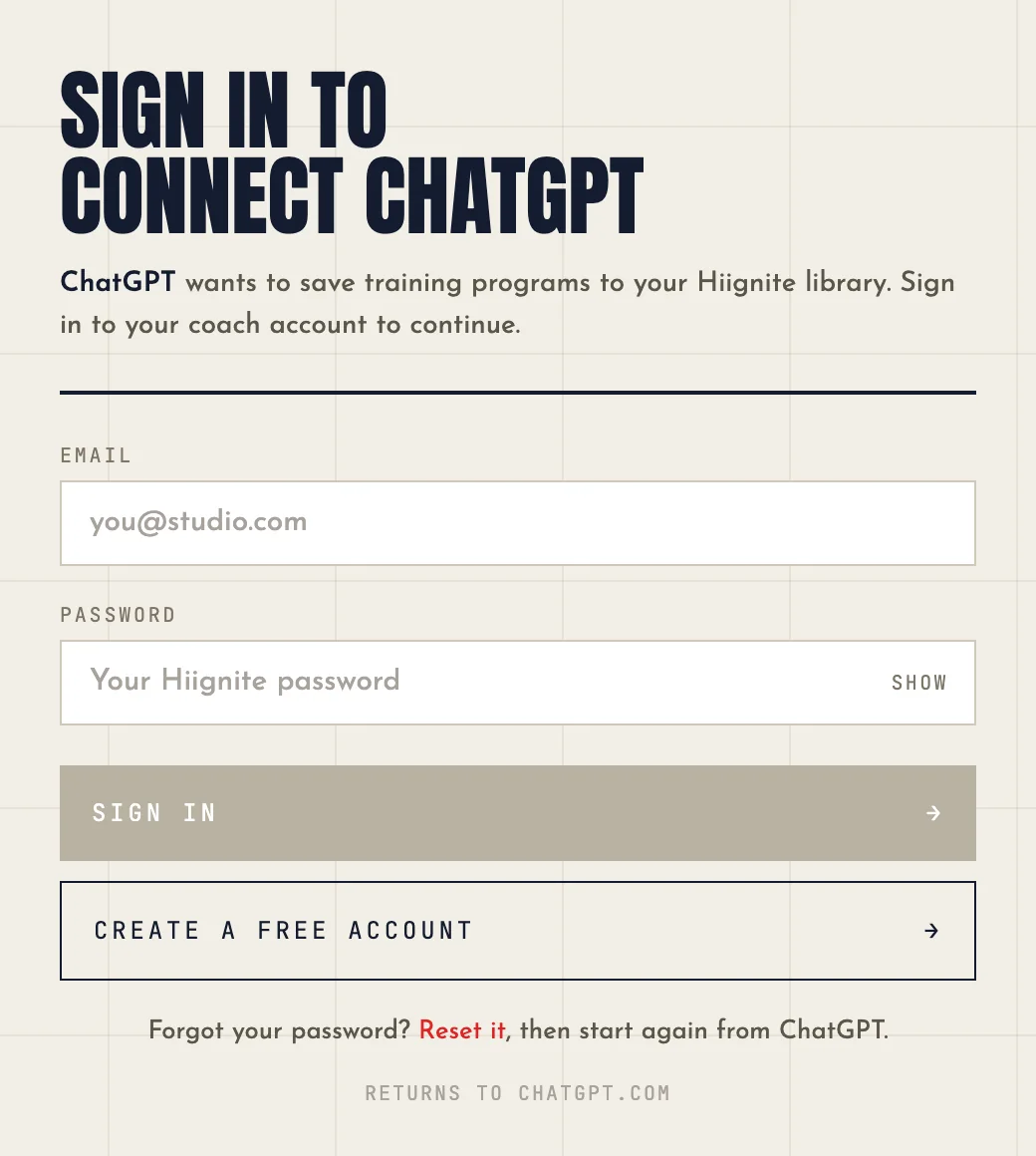
The page ChatGPT opens. It always names the assistant that is asking. -
Step 5
Open it in hiignite and assign it
ChatGPT replies with a link to the program in your library. Edit anything in the builder, then assign it to your client from there. They get it in the hiignite app, with the demo videos.
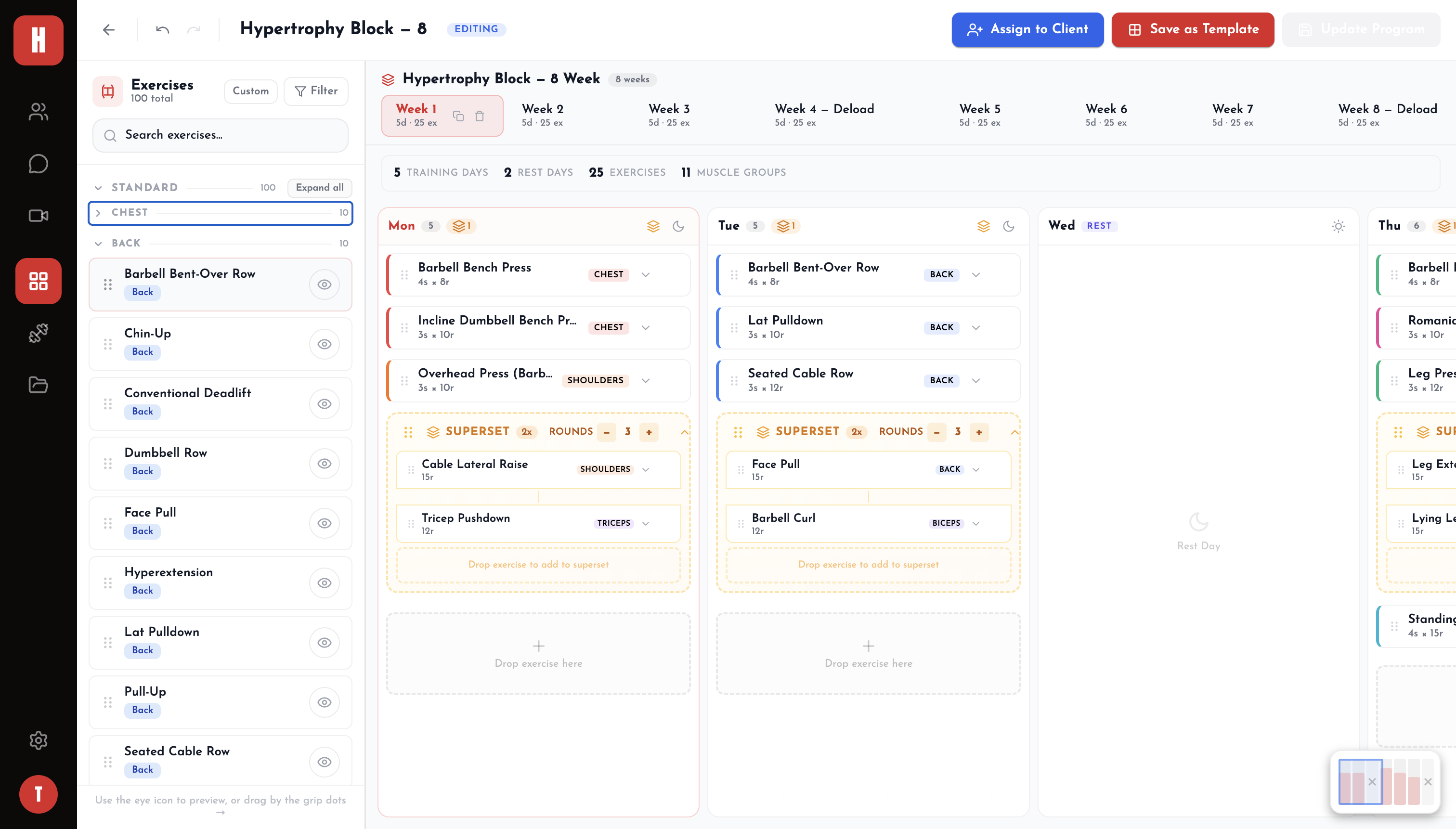
The saved program in the hiignite builder.
Nothing reaches your client until you assign it
- A program from ChatGPT is a draft in your library until you have read it and assigned it, exactly like one you wrote by hand.
- Exercises hiignite didn’t recognise are saved with the program as your own custom exercises, so nothing is dropped.
Using Claude instead
1. Add the connector
In Claude, open Settings, then Connectors, and choose Add custom connector. Paste this address and keep “Use Claude’s published identity” selected:
https://api.hiignite.com/mcp/connected
2. Sign in once
Claude opens the hiignite sign-in page as soon as you add it, not when you first save. Sign in, or create a free account, and choose Allow.
3. Ask the same way
Describe the client, end with “draft it in Hiignite”, then say “save it”. Other assistants that take custom MCP connectors with OAuth sign-in can use the Claude address too.
What it can and cannot do
It can
Save programs you build in chat to your program library, and add any exercise it used that is not in the library as your own custom exercise. That is the whole list.
It cannot
See your clients, your messages, form checks or billing. It cannot change or delete anything already in your account, and it cannot assign a program to anyone. Assigning stays with you, in hiignite.
What hiignite receives
The program: names of exercises, sets, reps and your notes. Not your conversation, and nothing about the client it is for. A draft you do not save is deleted after seven days. The details are in the privacy policy.
Questions
Use ChatGPT on the web, at chatgpt.com on a computer: that is where custom servers are added. On a work or school account (ChatGPT Business, Enterprise or Edu), an admin decides whether custom servers are allowed. If yours are switched off, ask your admin or use a personal account.
Add it on a computer, in ChatGPT on the web. That is the only place ChatGPT lets you add a custom server.
Not to draft. Saving a program needs one, and you can create it on the sign-in page ChatGPT opens. The free plan is enough.
Pick Hiignite with @ at the start of the message, or end it with “draft it in Hiignite”. hiignite only steps in for programs you write for your clients. It stays out of your own training, nutrition plans and general fitness questions.
hiignite is not in ChatGPT’s plugin directory yet. Adding it as a custom server connects you to the same hiignite, set up by hand. We will update this page when that changes.
In ChatGPT, open Plugins, find Hiignite and remove it. Programs you already saved stay in your hiignite library.
Start coaching on hiignite.
The free plan is free forever — one active client, no card, no trial clock. Saving programs from your assistant works on it.